Open Add-Ons on PC/Mac
At character selection, open Add-Ons from the main menu. During gameplay, press Esc to access the menu. Use the checkboxes to enable or disable installed add-ons, then use Reload UI to apply your changes.
explain these menu actions.
Follow an indirect requirement
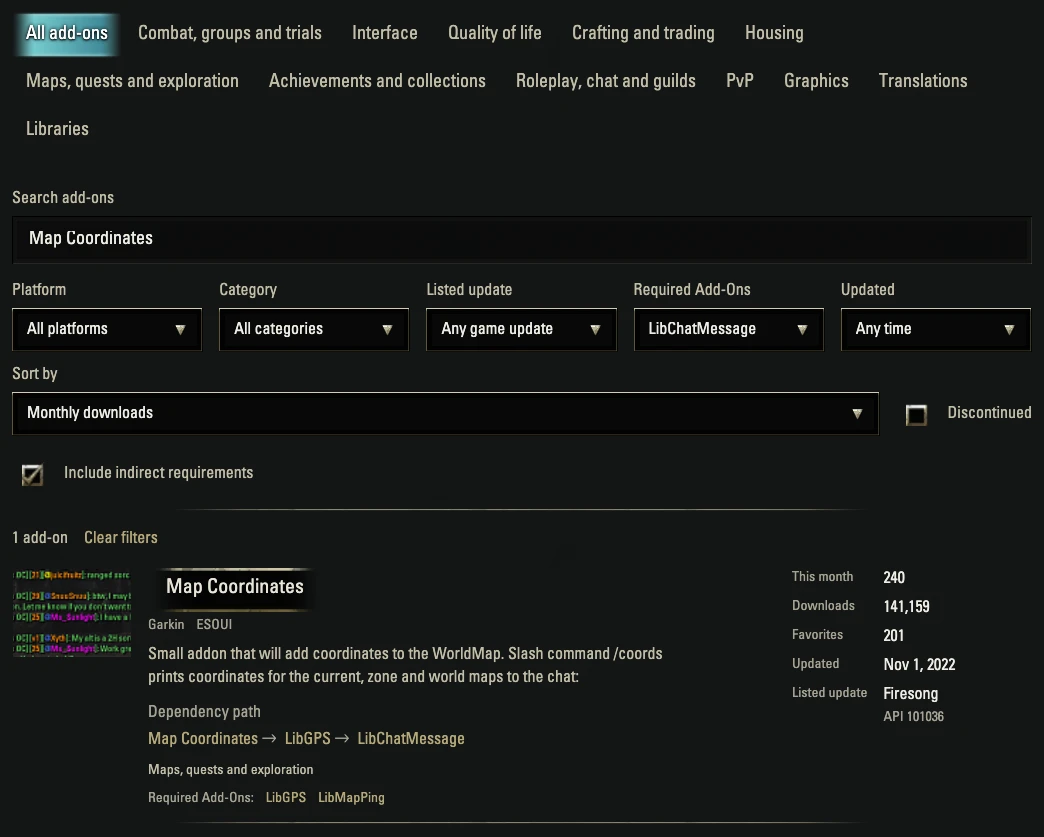
Open the Map Coordinates example. It searches for Map Coordinates, selects LibChatMessage under Required Add-Ons, and includes indirect requirements.
The listed path is Map Coordinates → LibGPS → LibChatMessage. Map Coordinates lists LibGPS, which lists LibChatMessage. This is why Map Coordinates appears when indirect requirements are included for LibChatMessage.
Inspect the library
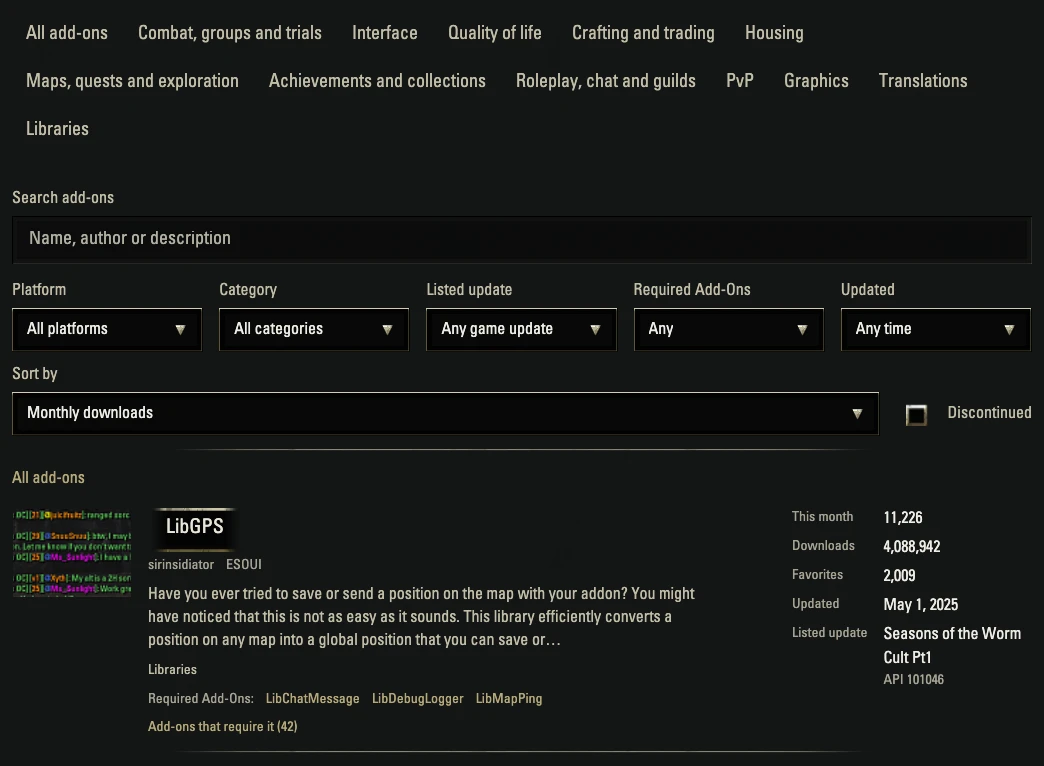
Open LibGPS to inspect the intermediate requirement, then follow LibChatMessage to inspect that library. Each add-on’s host page provides its installation instructions and supported versions.
If a listed requirement has no resolved catalog entry, check the creator’s instructions to identify the intended library. The directory cannot determine which files are installed on your computer.
Check updates and supported versions
Listed update and the displayed API number describe the catalog entry. They do not confirm compatibility with your current client or describe your installed copy.
explains that an outdated add-on can still work and can also cause interface issues. Update when an updated version is available, and consult the creator’s guidance if problems remain.
Return to the same selection
Copy the directory URL to share or revisit the same search and requirement mode. An explicit URL takes precedence over a remembered selection.
The directory remembers your last selection in this browser for a fresh visit to its main page. Clear filters resets the selection and remembers the cleared state.